The launcher is unsigned. Use these first-launch steps for a copy from our official download page.
Windows
“Windows protected your PC”
Open PWC Simulator Launcher.exe.
In the SmartScreen window, select More info.
Check the app name, then select Run anyway if available.
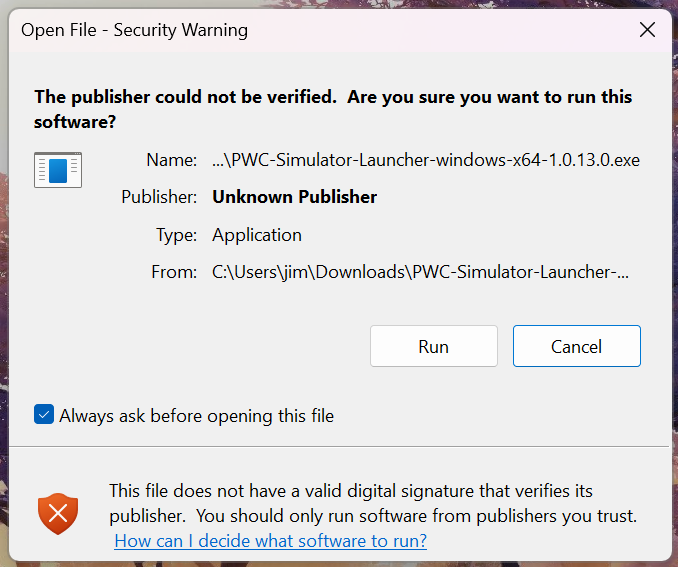
You may also see this warning when opening the launcher.
macOS
“Apple cannot check it for malicious software”
Unzip the Mac download and open PWC Simulator Launcher.
Dismiss the warning. Open System Settings → Privacy & Security.
Find the launcher’s name, select Open Anyway and confirm.
Keychain password prompts
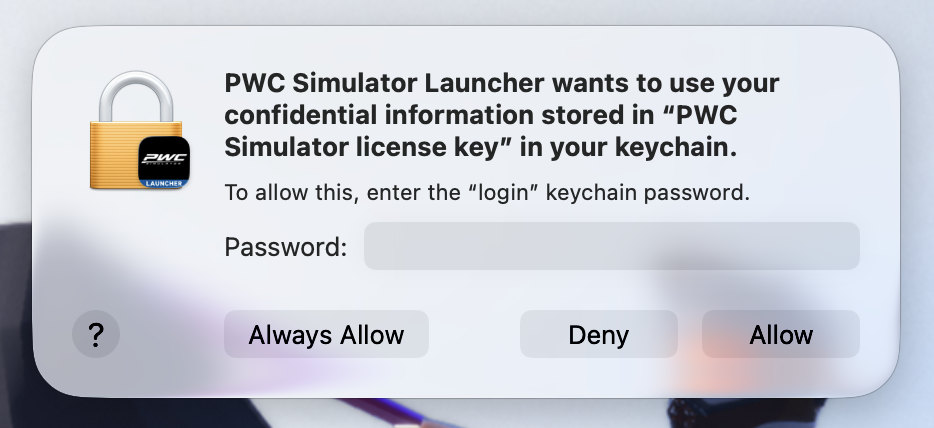
The launcher stores your license key in the macOS keychain to keep it safe. When PWC Simulator Launcher asks to access the key, enter your Mac login password and click Always Allow. You may see more than one prompt like this. Repeat these steps for each one.